Feature
Travel time: events with the trip included.
Google Calendar has no notion of travel time. Zulu adds it to the event, creates a matching event in Google, and moves it along whenever the event moves. The time on the road is blocked for you and for everyone who sees your calendar.
As of:
How to add travel time
Open an event. On the Mac, the panel has a Travel time row with two values: before and after. On iPhone, the event sheet has the same two rows with suggestions from 10 to 45 minutes or a custom value. Both save immediately.
In quick entry on iPhone, a short addition in the text is enough: Physio morgen 8 Uhr, 15 Min Weg or Rückweg 20 Min (the parser understands German for now).
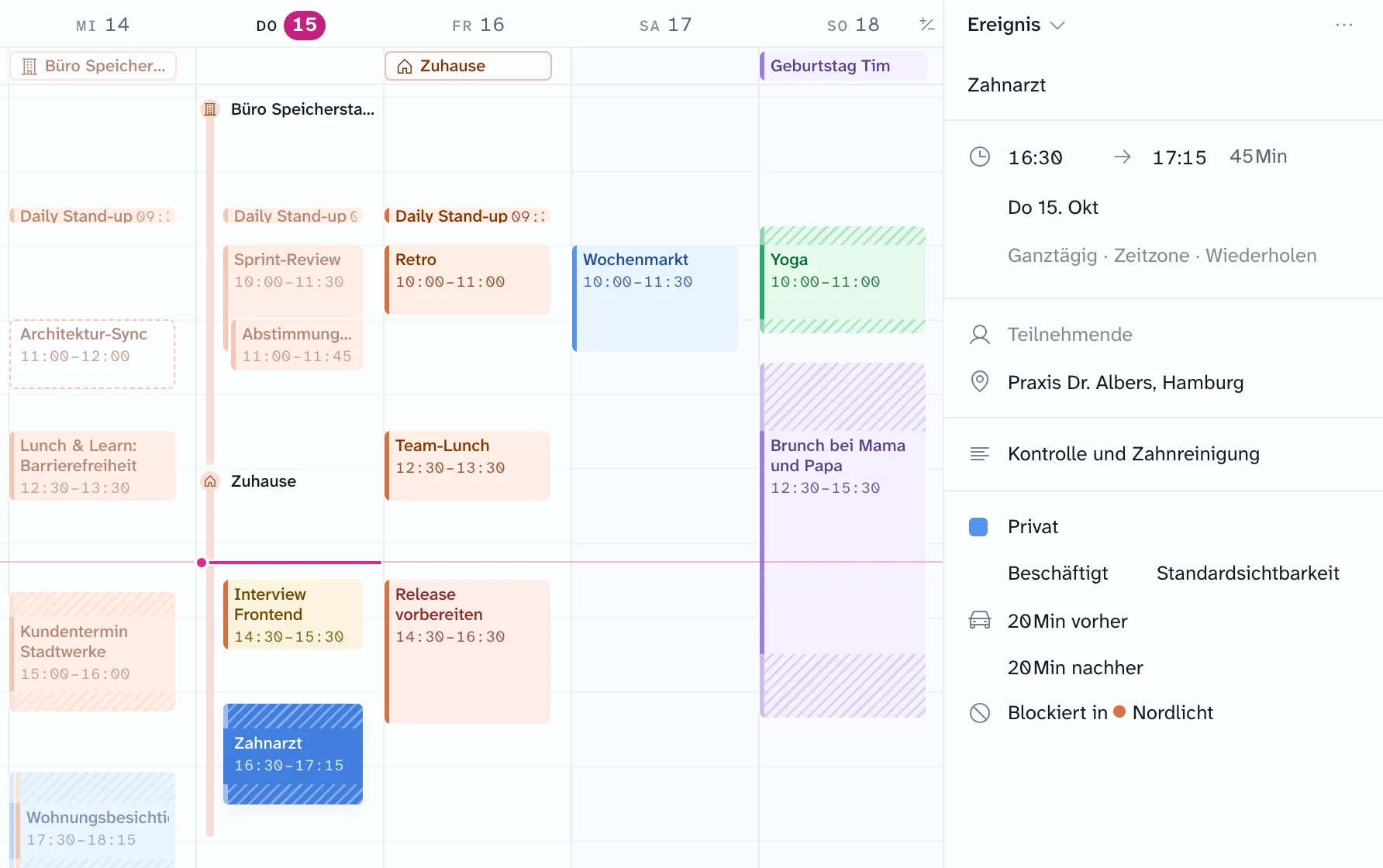
- There and back separately. 30 minutes there, 15 back, or only one of the two.
- Once for a series. The travel time of a series applies to every occurrence, but you can set it differently for one occurrence or “from this one on,” like any other property.
- No transport mode. Zulu doesn’t ask for car or train and doesn’t estimate the duration. You enter how long you need.
What happens in Google Calendar
Zulu creates the travel time as a regular event in the same Google calendar, right before and after the main event, titled “⏳ Wegzeit” and without a reminder. Zulu keeps the link to the main event itself; in Google there is only a short marker.
That has a consequence we care about: every app that shows your Google calendar sees the travel time. Anyone opening your calendar in Google Calendar, Outlook, or Apple Calendar sees that you’re on the road. You only need Zulu to enter it.
- Move the event, and Zulu moves the travel time. Delete it, and the travel time disappears.
- If two travel times touch or overlap, Zulu merges them into one event. From the dentist straight to the office is one trip, not two.
- A background service does this, even when no Mac or iPhone is on. Google notifies it of changes via push.
Day route and time to leave
The travel times feed the day route next to the calendar: a list of the day with waypoints, trips, and free time. “Losfahren 16:10” (leave at 4:10 PM) is there before you need it.
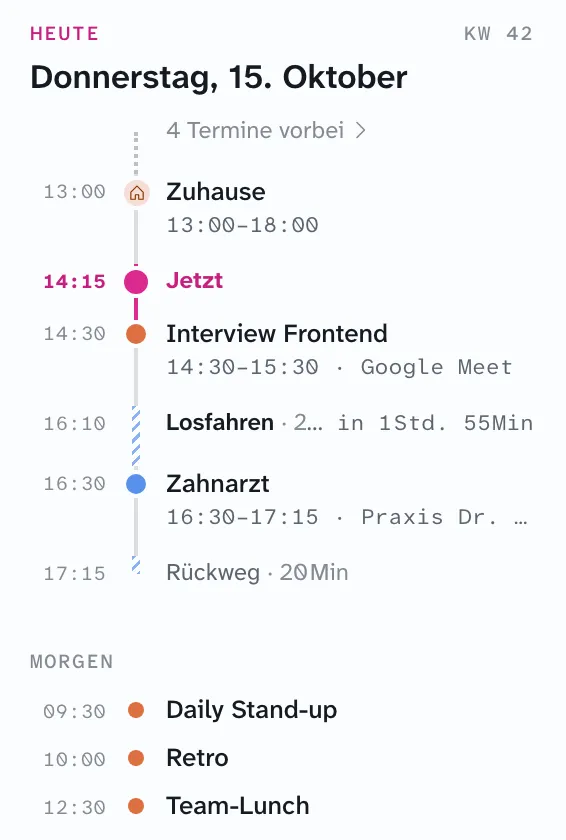
- iPhone: The day view shows a “time to leave” card with a countdown and a “Route” button that opens the location in Maps. At start time minus travel time, a notification arrives.
- “Today” widget: The day route as a home screen widget, medium and large. The trip before the next event reads “Losgehen · 25 Min” there.
- Hide: On the Mac,
⇧⌘Utoggles travel times in the view if you only want to see the events. They stay in Google.
What travel time doesn’t do
- It doesn’t estimate a duration from address and traffic. Apple Calendar can; the comparison with Apple Calendar explains how the two approaches differ.
- Working locations and focus time get no travel time. An out-of-office event can have one.
- The iPhone schedules the “time to leave” notification locally. If you change an event on the Mac while the iPhone app is closed, the phone finds out the next time you open the app.
Questions about travel time
Can I add travel time in Google Calendar without Zulu?
Google Calendar has no travel time feature of its own. You can create an event before the appointment by hand, but then you have to move and delete it yourself. That is exactly what Zulu takes over.
Does my employer see the travel time?
Only if the event is in your work calendar or a blocking rule mirrors it there. In the second case, the work calendar only shows “Blockiert” (blocked), spanning the trip there, the event, and the trip back.
What happens to the travel time events if I stop using Zulu?
They stay in Google as regular events and can be deleted there like any other. Nothing is hidden or readable only with Zulu.